how to pack a computer is a critical task in any modern move. Your computer is more than just an electronic device; it’s a hub for your work, your memories, and your entertainment. Improper packing can lead to catastrophic data loss and expensive hardware damage. This guide provides a professional, step-by-step protocol for desktop-computer-packing and moving a laptop safely, ensuring your valuable equipment is protected. For complex or multi-computer moves, the IT-equipment-relocation specialists at metropolitan movers Ottawa have the expertise to manage the process for you.
Step Zero: The Data Security Mandate
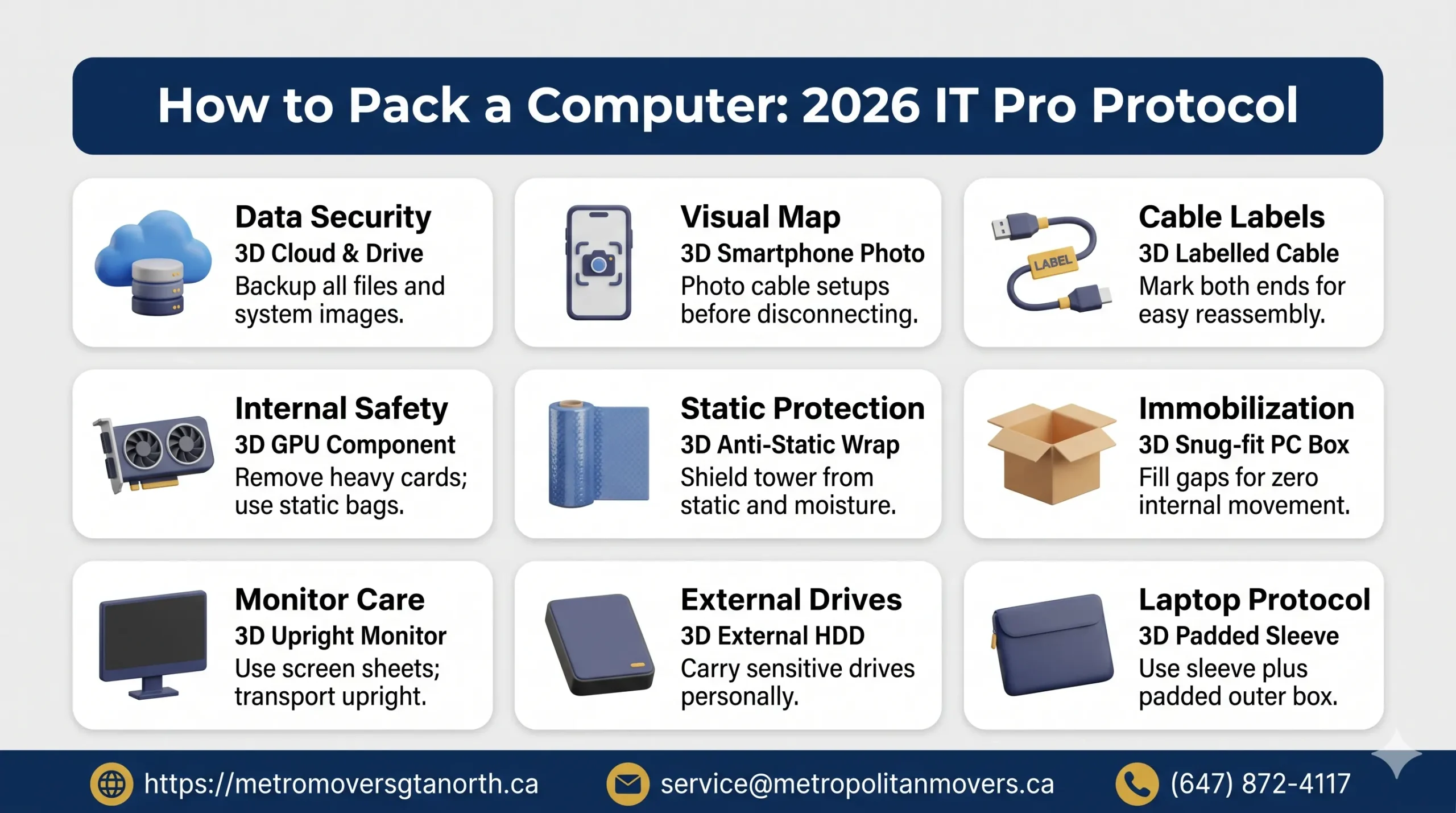
Before you touch a single cable, the most important step is to backup data before moving. Hardware can be replaced; your files, photos, and critical documents cannot.
- Cloud Backup: For your most important files, use a cloud service like Google Drive, Dropbox, or OneDrive. This ensures your data is accessible from anywhere, independent of your physical hardware.
- Full System Image: For a complete snapshot of your computer, create a system image on an external hard drive. This saves everything—your operating system, programs, settings, and files—allowing for a full restoration if needed.
- Verify Your Backup: A backup is useless if it’s corrupted. Open a few files from your external drive or cloud service on another device to ensure the backup was successful.
The Pre-Pack: Cable Management and Component Lockdown
A methodical pre-pack process prevents damage and eliminates setup headaches.
A Foolproof System for Computer Cable Management
- Take a Photo: Snap a clear picture of the back of your PC showing where every cable is connected. This is your visual cheat sheet for reassembly.
- Label Everything: Use masking tape or cable labels to mark both ends of every cord. Be specific (e.g., “Monitor 1 – HDMI,” “PC Power”).
- Coil and Contain: Disconnect all cables, coil them neatly, and secure them with zip ties or Velcro straps. Place all the cables for your main setup in one clearly labeled bag or box. This simple computer-packaging-tips saves hours of frustration.
Internal Lockdown: Protecting PC Components
For desktop PCs, especially gaming rigs or workstations with heavy components, vibrations during a move can be dangerous.
- Heavy Graphics Cards (GPUs): A large GPU can put immense stress on the motherboard’s PCIe slot. The best practice is to carefully remove the GPU, place it in an anti-static bag, and pack it in its original box or a separate, well-padded box.
- Large Air Coolers: Heavy tower-style CPU coolers can also damage the motherboard. If you are not comfortable removing it, you can use expanding foam packing bags (Instapak) inside the case to brace it, ensuring you don’t put pressure on other components. This is an advanced step in protecting PC components.
How to Pack a Computer: The Physical Process
With your data backed up and components secured, it’s time for the physical pack.
Desktop Computer Packing
- Find the Right Box: The original box is always best. If you don’t have it, you will need a sturdy, double-walled monitor-shipping-box or computer box. It should be slightly larger than the tower, allowing for 2-3 inches of padding on all sides.
- Wrap the Tower: Place the computer tower in a large anti-static bag to protect it from static discharge and moisture.
- Pad the Box: Line the bottom of the box with a thick layer of bubble wrap or foam.
- Center and Fill: Place the wrapped tower in the center of the box. Fill all surrounding empty space with bubble wrap, packing paper, or foam. The goal is zero movement. The tower should be completely immobilized.
- Seal and Label: Tape the box securely and label it “FRAGILE – COMPUTER” with arrows indicating the correct upright position.
Packing Monitors and Peripherals
- Monitors: Pack monitors as you would a TV. Use the original box if possible. If not, a monitor-shipping-box is essential. Wrap the screen in a soft cloth or foam sheet before boxing it up, and ensure it is always transported upright.
- Keyboards, Mice, and Speakers: Wrap these items individually in bubble wrap and pack them in a clearly labeled box.
- External Hard Drive Packing: These devices are extremely sensitive to shocks. Wrap your external drive in multiple layers of bubble wrap and pack it in a small, snug box. It’s wise to transport this box with you personally, rather than on the moving truck.
Moving a Laptop Safely
Laptops are designed for portability, but they are still fragile.
- Power Down: Shut it down completely.
- Use a Padded Case: Place the laptop in a dedicated padded laptop sleeve or case.
- Pack in a Box: For maximum protection during a move, place the padded case inside a larger box with extra padding. Never pack a laptop in a suitcase with hard objects that could press against the screen. The team at metropolitan movers Ottawa handles such items with care during every house moving service.
For businesses or individuals with significant IT-equipment-relocation needs, such as moving multiple workstations, servers, and networking gear, a DIY approach is risky. A professional mover with experience in this area is crucial. The dedicated office moving service from metropolitan movers Ottawa ensures that your entire tech infrastructure is packed and transported with the highest level of professional care, minimizing downtime and protecting your valuable assets. By following these professional computer-packaging-tips, you can be confident that your digital world will make the move